Attachments
Attachments in Test Studio are files registered in a workspace so that test cases can use them as test data or resources during execution. Test steps reference these files using their exact registered filenames.
Why it matters / Use Cases:
- Keep Test Evidence: Stores screenshots and other files alongside workspace-related testing work.
- Shared Test Resources: Allows team members and test runs to access the files required by test cases.
- File-Based Testing: Supports test scenarios that require files, such as uploads, image comparisons, and document imports.
- Centralized File Management: Provides a single place to upload, review, download, and remove workspace attachments.
- Test Data Management: Allows registered files to be used as resources by test cases during execution.
Prerequisites
- Required File: The file to be used in the test case should be available on the local machine.
- Supported File: The file should be in a format supported by the intended test scenario, such as an image or document.
- Upload Permission: Users must have permission to upload files to the workspace.
- Test Case Requirement: If the file is intended for a test case, the test should reference the attachment using its exact registered filename.
Features
-
The Attachments feature can be accessed from the left-side panel of the Test Studio app.
-
After clicking the Attachments feature, users are directed to the Attachments page.
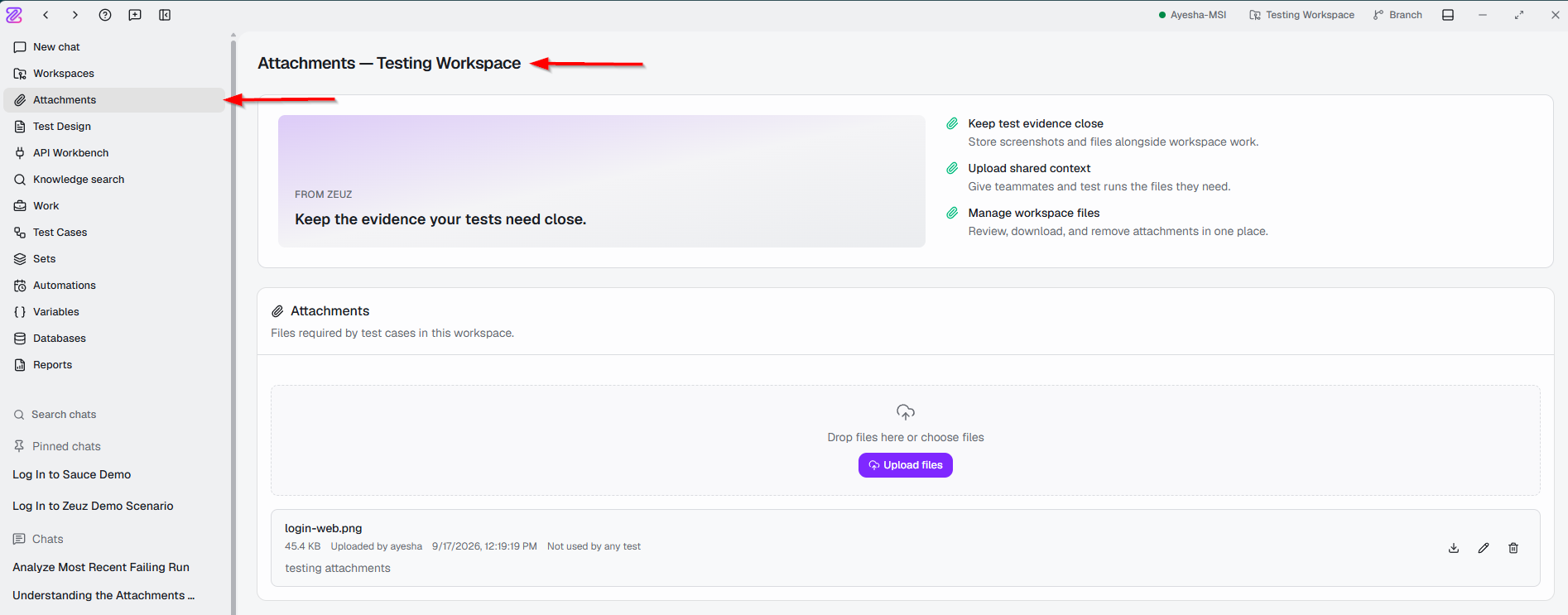
Top section of the Attachments page
-
The top section of the Attachments page highlights the main purposes of the Attachments feature:
- Keep test evidence close: Allows users to store screenshots and other files alongside their workspace testing activities.
- Upload shared context: Allows users to upload files that can be accessed by teammates and test runs when required.
- Manage workspace files: Provides a centralized place to review, download, and remove attachments.

Upload Files
-
The upload area allows users to add files in two ways:
- Drop files here or choose files: Allows users to select files from their local machine or drag and drop them into the upload area.
- Upload files: Allows users to upload the selected files to the workspace.
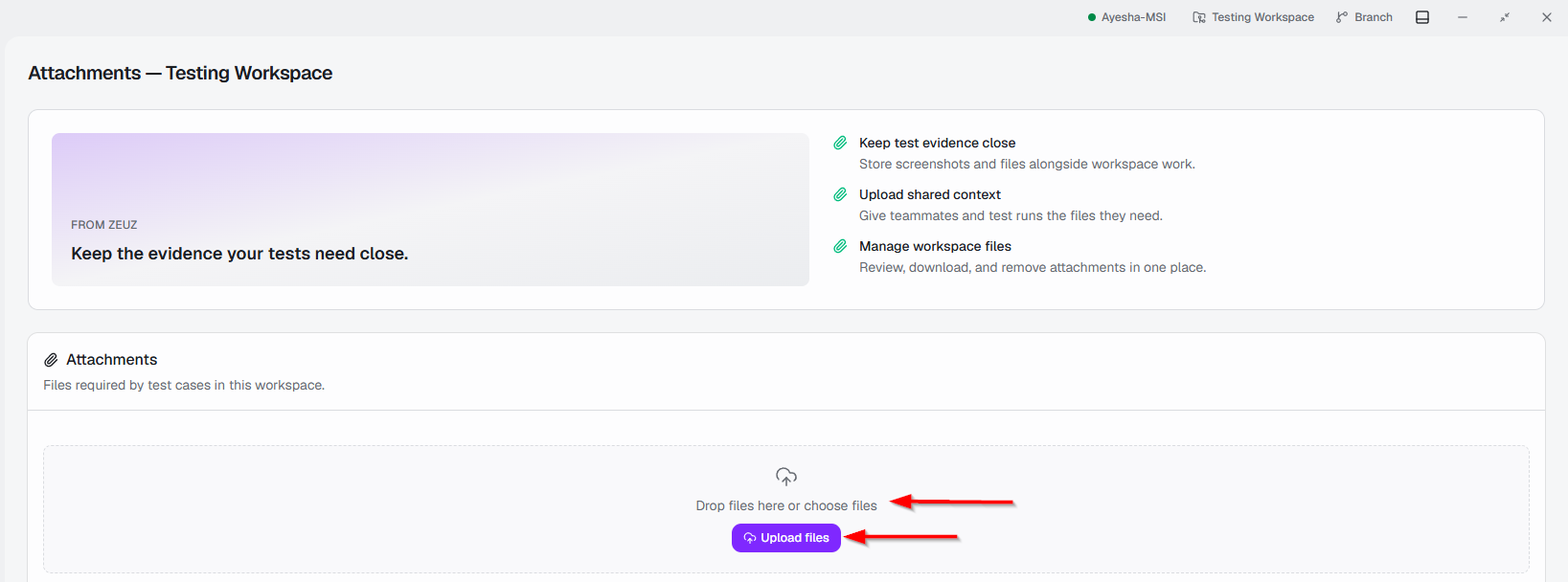
Uploaded Attachment
-
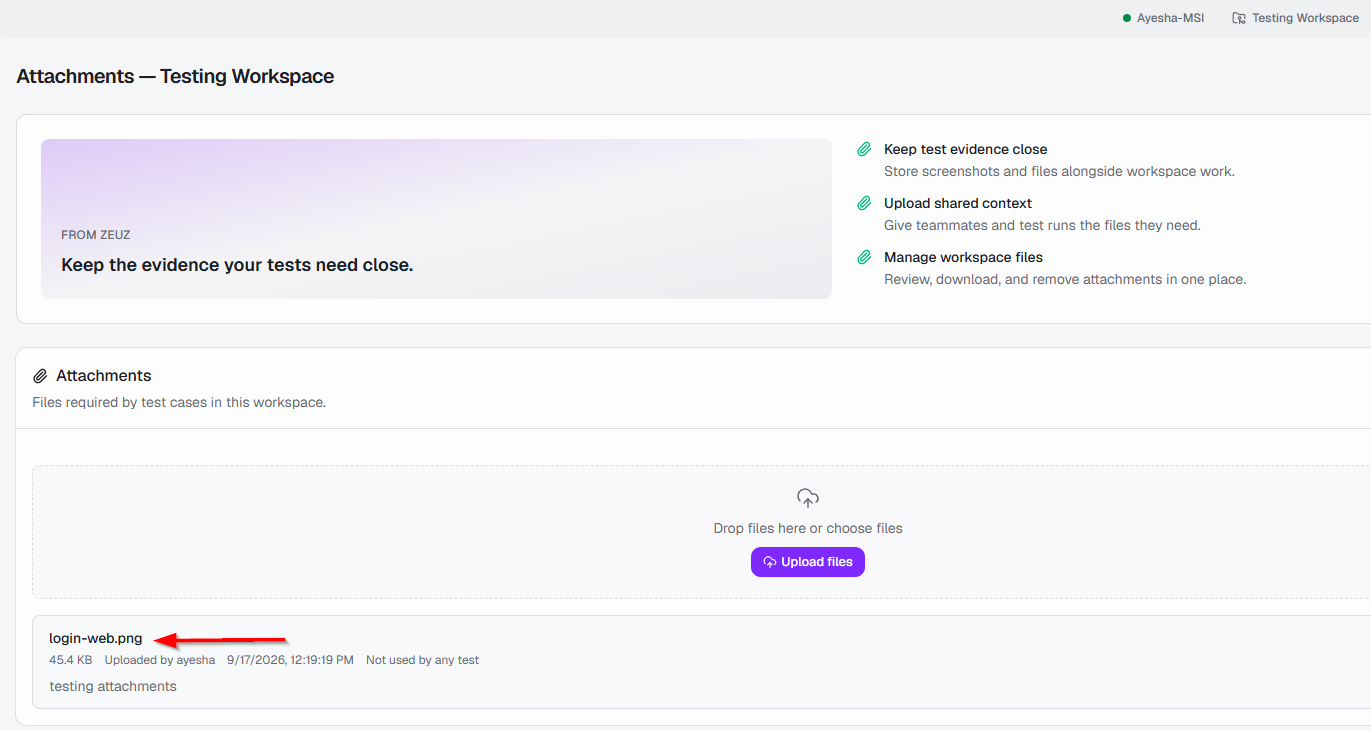
An uploaded attachment is a file that has been added to a workspace so that it can be used as a resource for test cases. It contains the following options:
- File Name: Displays the name of the uploaded file.
- File Size: It indicates the amount of storage space occupied by an uploaded file.
- Uploaded By: It indicates the user who added the file to the workspace.
- Upload date: It indicates the date on which the file was added to the workspace.
- Usage: It indicates whether the file is currently referenced by any test case.
- Description: It provides additional information about the uploaded file, such as its purpose or how it is intended to be used.
-
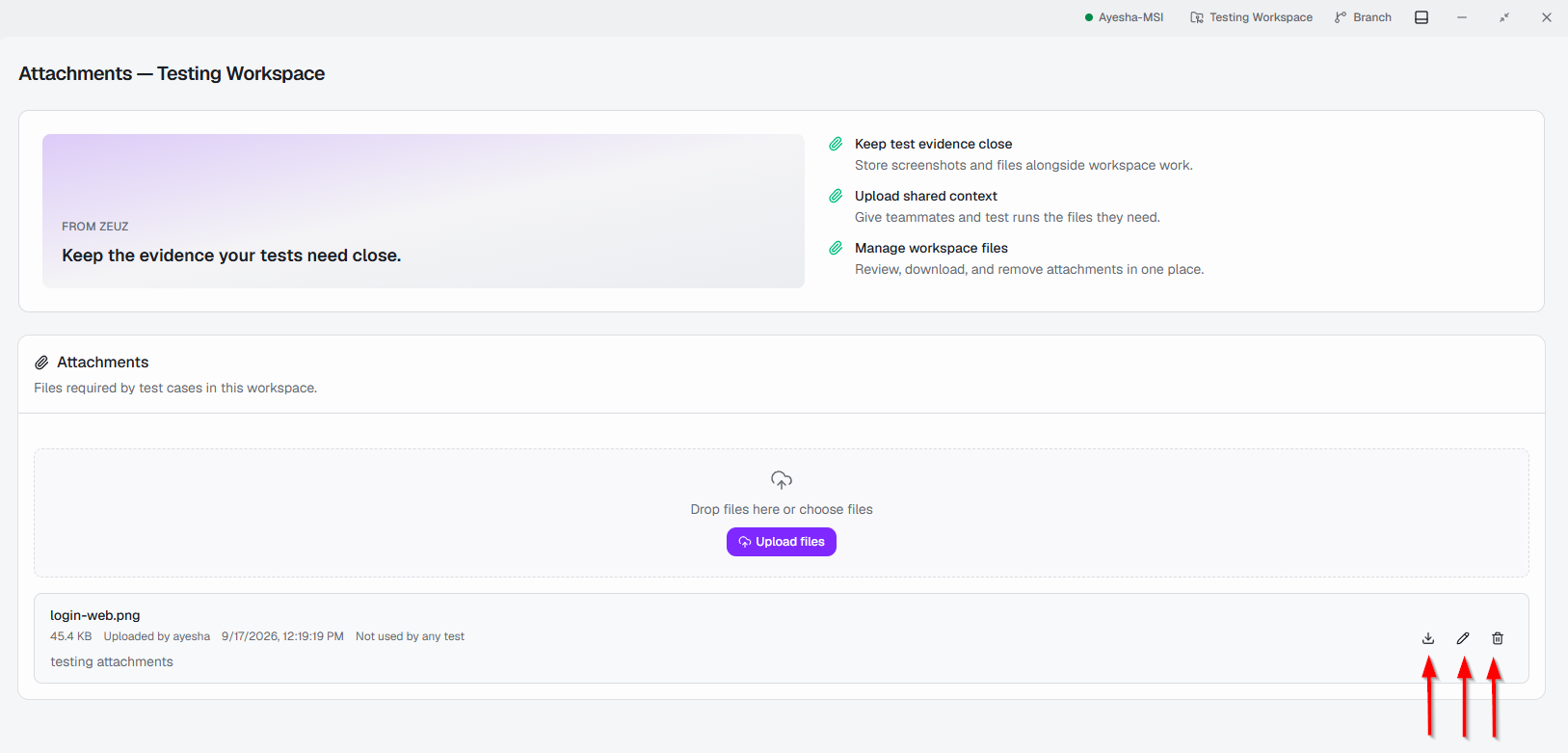
The available actions for the uploaded file include:
- Download: Downloads the file.
- Edit: Allows users to modify the file information.
- Delete: Removes the attachment from the workspace.
 note
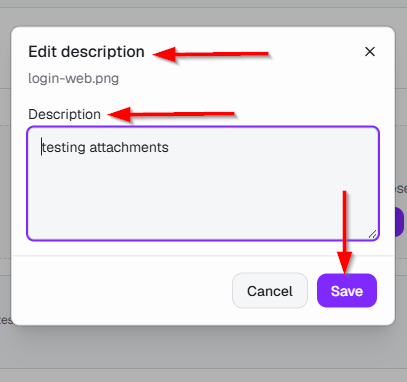
note- To edit the file description, click the Edit button first and then the Edit Description window will then open.
- In the Edit Description window, enter the required description in the Description field and click Save to apply the changes.
FAQs / Troubleshooting
Why can't I use an attachment in a test case?
Make sure the file has been successfully registered as a workspace attachment and that the test case references the attachment using its exact registered filename.
How can I check whether an attachment is being used?
The Usage information for each attachment indicates whether the file is currently referenced by any test case.
Can I edit an attachment after uploading it?
Users can edit the attachment's description through the Edit option, but the file itself cannot be modified through the description editor.
Can I delete an attachment?
Yes. Users can delete an attachment using the Delete option. However, attachments referenced by test cases should be checked before deletion.
Changelog
- A dedicated workspace for creating, refining, comparing, and versioning AI-generated UI mockups [202605]